
Spread+




Spread your clips onto individual tracks, Synchronize, then put them back. Advanced multicam support, plus settings like automatic backups and clip linking.
Works in Premiere Pro 2020 or later · Mac & Windows
What editors are saying about Spread+
“I just bought the spread+ and managed to sync 588 video clips and 1878 audio files and it took me only 1 hour. Normally it takes me 4-6 hours.”
“Love this tool, absolute life saver. Don't know why adobe hasn't come up with something.”
“It has been a very useful tool in our workflow, especially when dealing with complex synchronization tasks involving multiple cameras and external audio recorders.”
“The Spread plugin is absolutely amazing and really speeds up my workflow.”
“Dude, this is such a life saver. It's been saving me so much time.”

“Bro, OMG, thank you so much for this plugin. It's a game changer.”

Spread, Synchronize, Re-stack.
Spread gives every clip its own track and opens Premiere's Synchronize dialog automatically. Confirm Audio to sync, then Re-stack rebuilds the timeline using your settings.
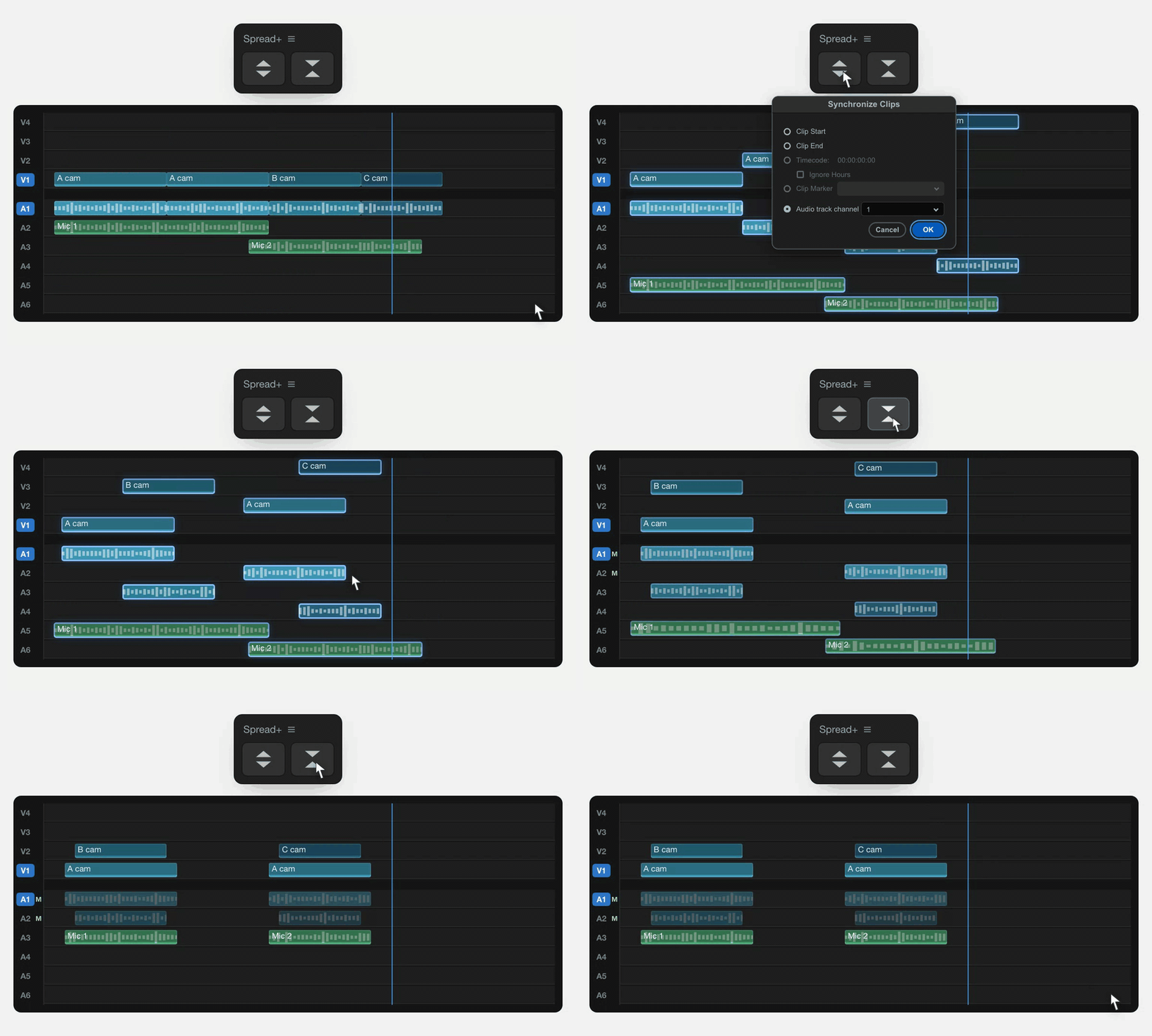
Your rules, applied on every run
Right click the panel and everything lives in one settings window: track layout, camera audio, link groups, backups and more. Set it once, and every run follows. Try it yourself below.
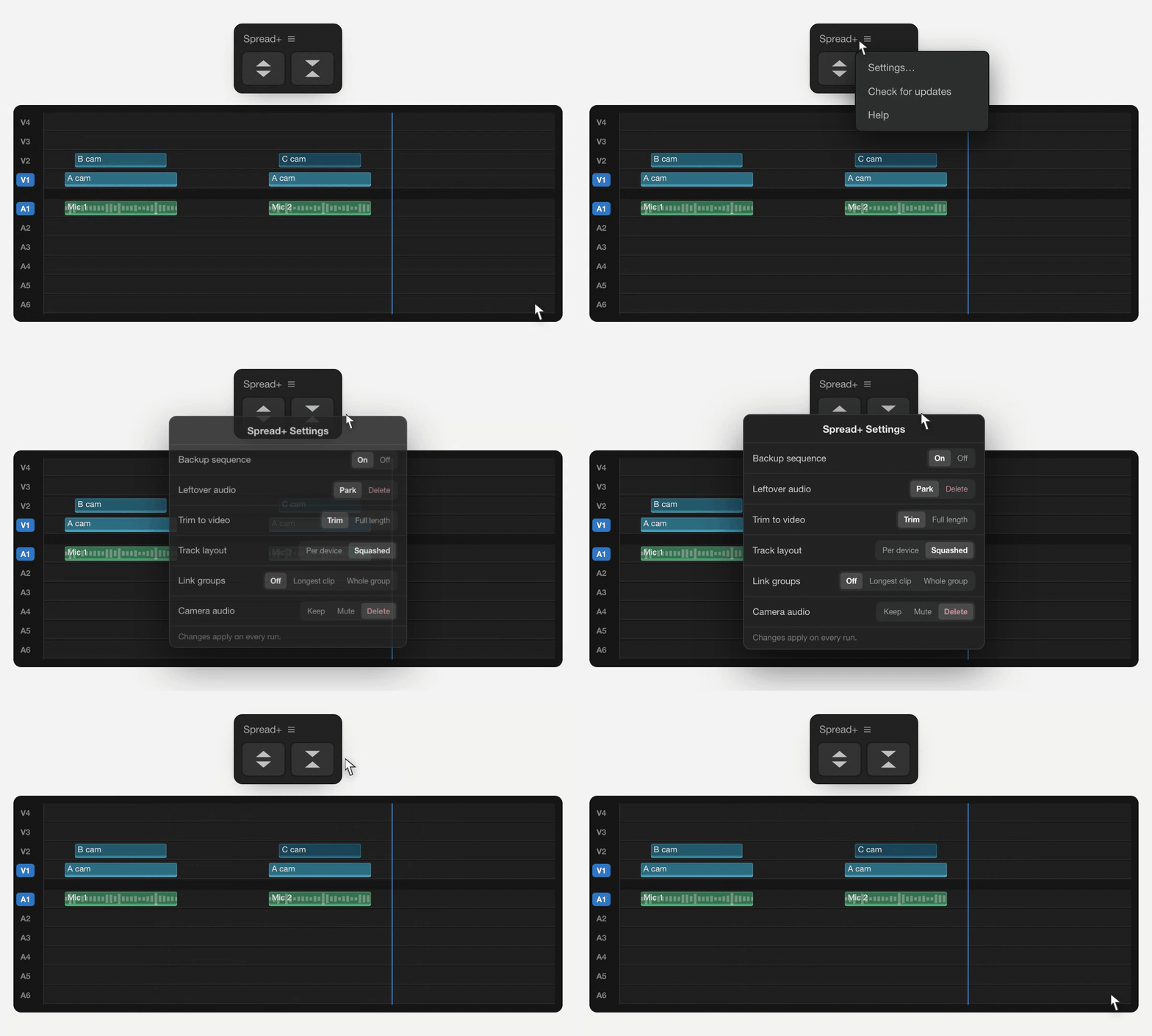
Try the settings for yourself
This demo is a representation of how the settings behave. In Premiere, they shape the rebuild when you press Re-stack, rather than live updating your timeline.
FAQs
Why am I getting an ‘Audio Synchronize Failure’ warning?
This warning comes from Premiere when it can’t match the audio for some of your clips. It doesn’t mean the whole sync failed. 99 out of 100 clips could have synced successfully and you’ll still see the warning. Carry on and press Re-stack, then check the results. Spread prepares and reorganises your timeline; Premiere performs the audio matching.
My clips have audio, but they still won’t sync.
Premiere may be analysing a silent channel, or a different channel from the one containing your microphone recording. Select your clips, right-click Synchronize → Audio, then choose Mix Down from the Track Channel dropdown and try again. This doesn’t change your original files. If that doesn’t help, check which channel contains the useful audio under Modify → Audio Channels in the Project panel. Apply any mapping changes there, then add fresh copies of the clips to a test sequence.
Why does my timeline look different after Re-stack?
Re-stack’s appearance depends on your settings. In Spread+ Settings → Track layout, choose Per device to keep each camera and microphone on its own tracks, or Squashed for a more compact layout using fewer tracks. You can also choose whether audio is trimmed to the video or kept at full length, whether camera audio is kept, muted or removed, and whether leftover audio is parked at the end or removed from the timeline. Check these settings before running Re-stack to get the layout you want.
Do you offer studio licences?
Yes. A studio licence covers your whole team on one key, with two machines per editor, just like a normal licence. The more editors you need, the less each one costs, and you can add more later. Get in touch with how many editors you have and I’ll send you a price.