
Spread
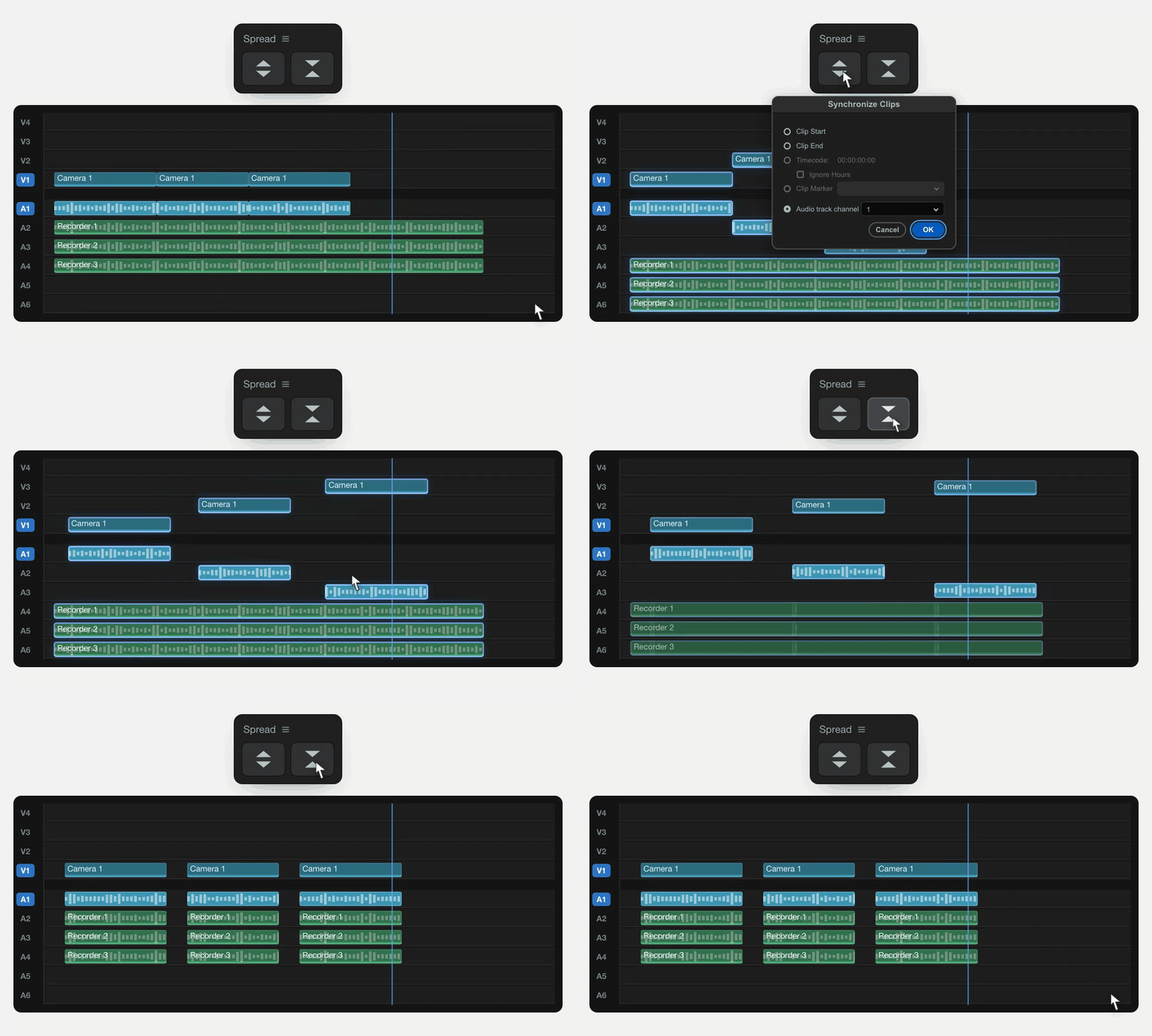
Spread your single-cam, multi-audio sequence onto individual tracks, Synchronize, then put them back.
Works in Premiere Pro 2020 or later · Mac & Windows
Need multicam support or more customisation? Check out Spread+.
Spread, Synchronize, Re-stack
Spread gives every clip its own track and opens Premiere's Synchronize dialog for you. Confirm Audio to sync, then press Re-stack to put the edit back together.
FAQs
Why am I getting an ‘Audio Synchronize Failure’ warning?
This warning comes from Premiere when it can’t match the audio for some of your clips. It doesn’t mean the whole sync failed. 99 out of 100 clips could have synced successfully and you’ll still see the warning. Carry on and press Re-stack, then check the results. Spread prepares and reorganises your timeline; Premiere performs the audio matching.
My clips have audio, but they still won’t sync.
Premiere may be analysing a silent channel, or a different channel from the one containing your microphone recording. Select your clips, right-click Synchronize → Audio, then choose Mix Down from the Track Channel dropdown and try again. This doesn’t change your original files. If that doesn’t help, check which channel contains the useful audio under Modify → Audio Channels in the Project panel. Apply any mapping changes there, then add fresh copies of the clips to a test sequence.